

Recently Deleted Feature
Introduction
After seeing many of our competitors begin to include a “Trash” or “Recently Deleted” feature, and hearing from our Sales team that partners were requesting this, we decided it was essential to implement. Recently Deleted is a folder that stores deleted photos for a certain number of days until those items are permanently deleted. It is a fail-safe system to ensure that users never unintentionally lose their content.
This was the first feature at MiMedia where I owned the design, iteration and implementation process. I learned about the types of problems I would face while deploying features and what questions to ask before the feature is released to the public.
Problem
If users accidentally delete their content or delete their content and later realize they wanted to keep it, they have no way to retrieve it. The current deletion flow leaves no room for user error.
Design Process
Product Requirements
The product requirements for this feature were complex. The Android system has strict rules regarding apps deleting user’s content – User permission is needed to delete a local photo, and once that permission is given, the photo is immediately permanently deleted. Cloud photos, on the other hand, can be stored temporarily in the cloud and then automatically permanently deleted after 30 days. This makes having a Recently Deleted folder complicated, because we wanted to give users 30 days for cloud and device photos.
Due to this restriction, I had to determine how the flow would look for these three use cases:
- User deletes a photo that is only stored in the cloud
- User deletes a photo that is only stored on the user’s device
- User deletes a photo that is stored on the user’s device and in the cloud
This flow restriction meant that I had to create two sections in Recently Deleted, one for local photos and one for cloud photos. Cloud photos were set for automatic and permanent deletion after 30 days. Local photos were moved to the Recently Deleted folder, so the user could manually delete or restore the photo on their own timeline. We worried this solution would confuse users, so to keep their trust and improve clarity, we created notifications for all use cases to explain to users what was happening with their photos.
Mockups
After determining that two sections would be needed for Recently Deleted, I looked through our app for any pages with two sections. Our MiDrive (shared album) page allows users to create different sections in their albums. These sections are displayed vertically (one below the next). Our team decided against this organization strategy because if a user had a significant number of deleted photos, they would’t notice that there was a second section on the page.
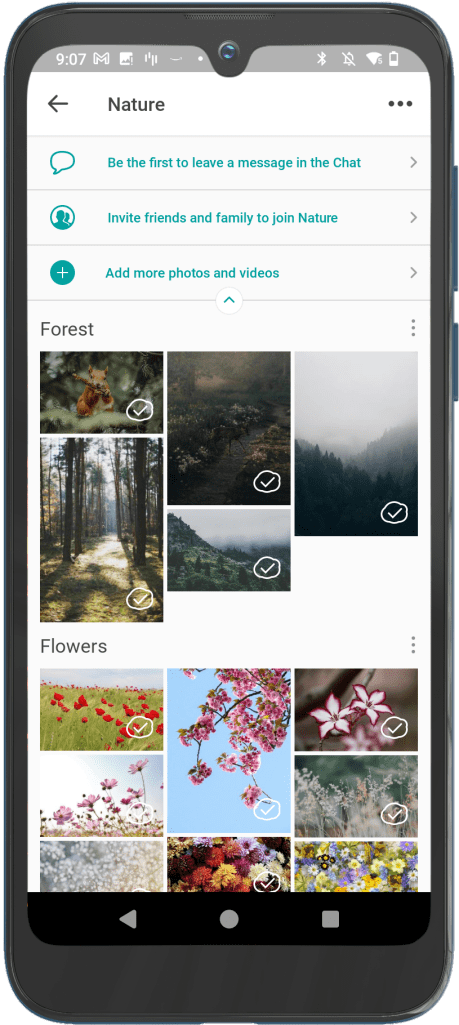
MiDrive screen showing two vertically displayed sections
Our Live Wallpaper configuration page has two tabs on one page that the user could switch between. To switch tabs, the user clicks the tab title (for example: “Select Photos” or “Settings”). I met with our team and we decided to model Recently Deleted after this design because the user gets a hint of what the other tab holds and the tabs are easy to switch between.
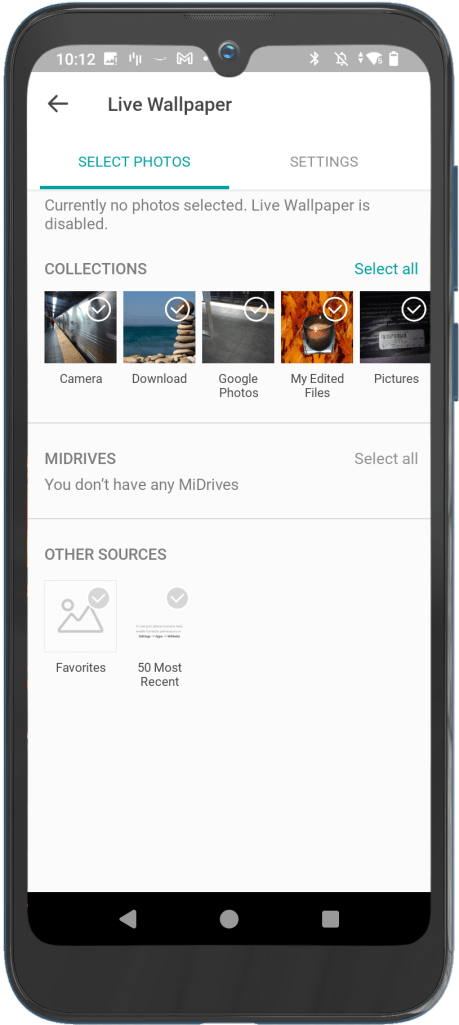
Live Wallpaper screen – Select Photos tab
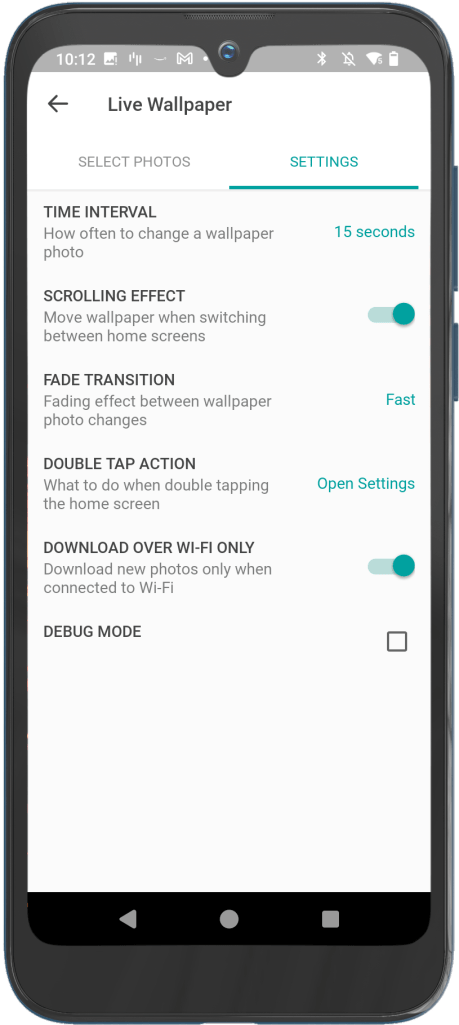
Live Wallpaper screen – Settings tab
Solution
The Recently Deleted page has two tabs as previously mentioned, a Device and Cloud tab to differentiate the two methods used for permanent deletion. Photos on the Device tab have to be deleted manually by the user, and photos on the Cloud tab are deleted automatically 30 days after being moved to Recently Deleted.
When users go to Recently Deleted, they land on the Device tab because their action is needed on this page. In order to increase transparency and clarity, I added brief descriptions of the deletion flow on the top of the Cloud and Device tabs so that users would understand which photos would get deleted automatically vs manually. Content deletion is taken seriously because users trust us with their content, so I wanted to ensure that the Recently Deleted feature left no room for confusion.
Recently Deleted screen – Device tab

Recently Deleted screen – Cloud tab
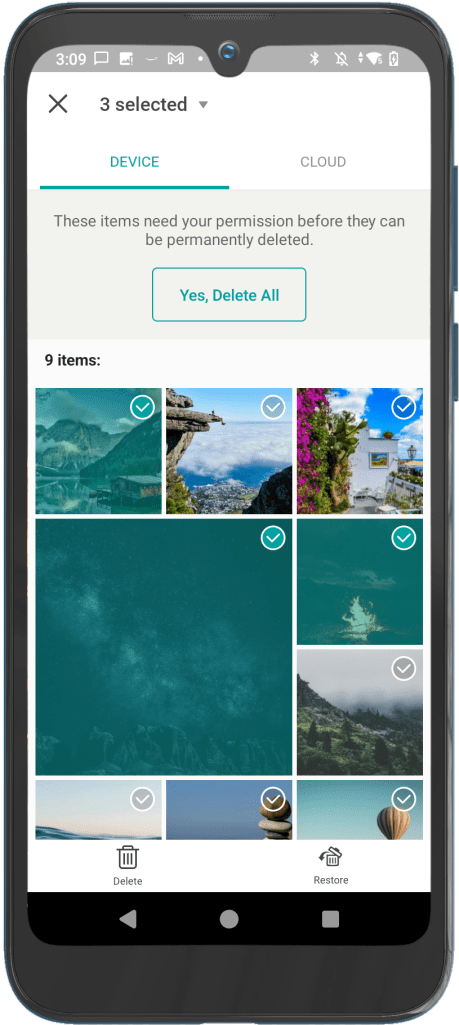
Recently Deleted screen – Multi-select view (users can select multiple photos to permanently delete or restore at once)
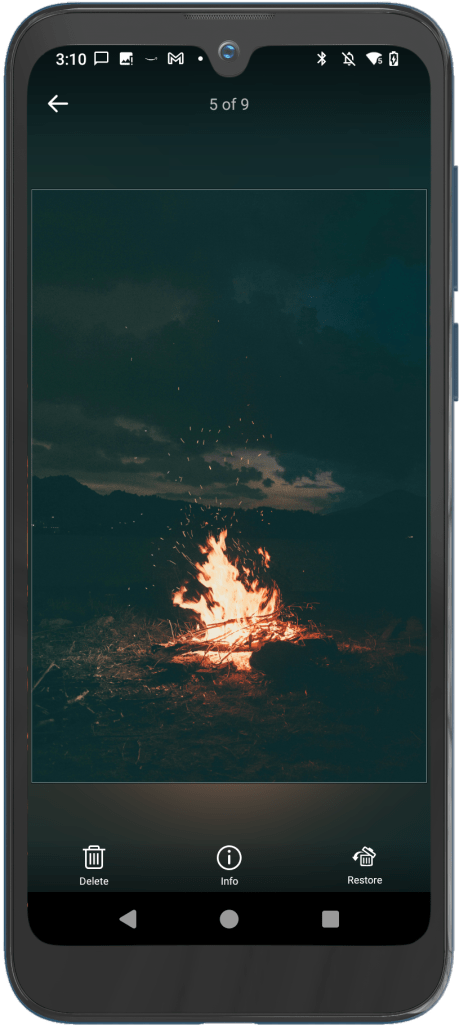
Photo Media View in Recently Deleted folder (users can view an individual photo and permanently delete or restore it)
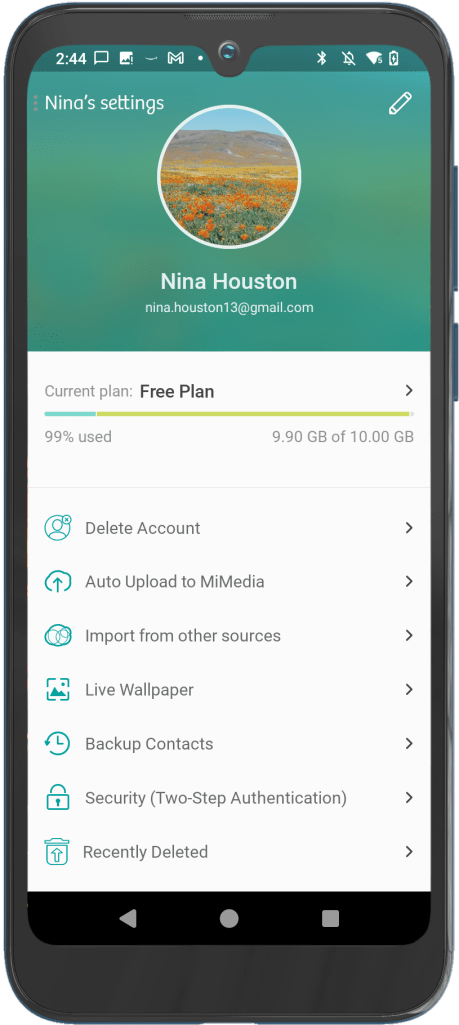
There are two ways to access Recently Deleted. Users can click on the notification that appears when they delete a photo or they can access it through the “Recently Deleted” button on the Settings page. The Settings page contains only the most important settings like storage, account deletion and auto upload, and we wanted content deletion to be viewed as similarly important.
 Nina Houston